Image to Cloud Sketch: Turn a Silhouette into Realistic Cloud Art
Learn how to turn an uploaded image into a realistic cloud-shaped sketch in a blue sky, with tips for silhouettes, negative space, and cloudness settings.
Quick Answer
How do you turn an image into a cloud sketch?
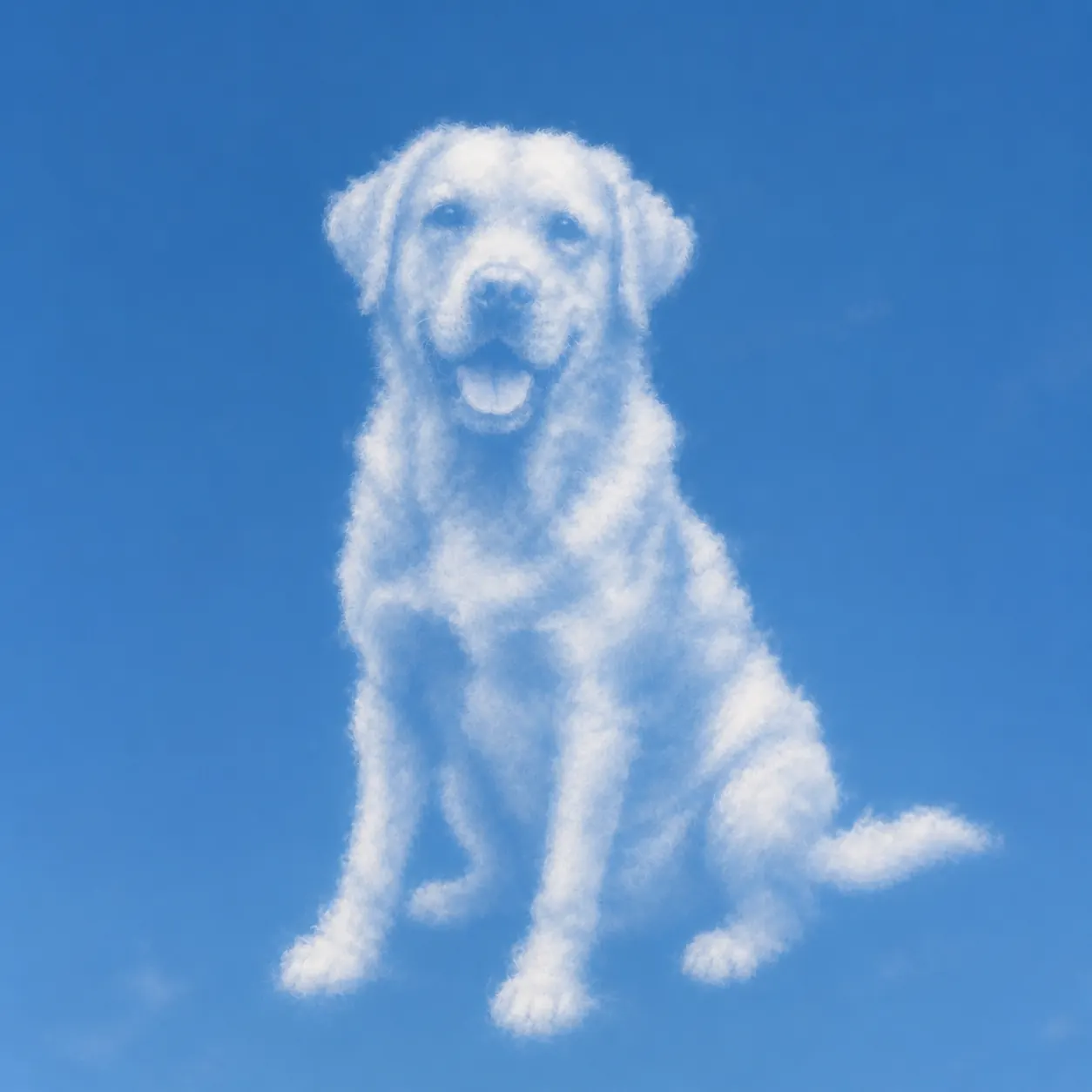
To turn an image into a cloud sketch, upload a picture with a clear main subject, choose the cloud sketch tool, then set cloudness before generating. The tool uses the original image as a shape and composition reference, then recreates that subject as soft white cumulus clouds against a clean blue sky.
A good result should feel like a real photo of clouds that naturally formed into the subject. The silhouette, proportions, holes, and main contours should stay recognizable, but the visible material should be fluffy cloud rather than ink, pencil, plastic, or a 3D logo.
Best Inputs
What images work best for cloud-shaped art?
Cloud sketches rely on shape more than texture. The converter can use a portrait, pet, object, icon-like image, or simple scene, but the best inputs have one dominant subject that remains readable as a silhouette.
Before uploading, squint at the image. If you can still recognize the subject from the outer shape and major gaps, it has a strong chance of becoming good cloud art.
- Use images with one clear subject instead of crowded scenes with many competing objects.
- Choose strong silhouettes: people in profile, animals, vehicles, plants, symbols, and simple product shapes usually work well.
- Keep important negative spaces visible, such as gaps between arms, ears, branches, wheels, or handles.
- Avoid tiny text, logos with hard edges, busy screenshots, low-resolution images, and subjects that only make sense through color.
- Crop closer if the subject is small in the frame; a larger shape gives the cloud form more room to breathe.
Cloudness
How to choose the right cloudness setting
Cloudness controls how dense and full the generated cloud shape should be. It does not change the input image itself. It changes how much visual mass the cloud reconstruction uses while still trying to preserve the original silhouette.
The default is balanced, but the best setting depends on the source image. Thin subjects often need a lower value so they do not become a large cloudy block. Bold, compact shapes can handle a higher value because they already have a strong outer contour.
- Use lower cloudness for airy results, delicate silhouettes, logos, profile shapes, and images with important gaps.
- Use medium cloudness for most portraits, pets, objects, and simple scenes.
- Use higher cloudness when the subject should feel fuller, softer, and more dramatic in the sky.
- If the blue sky disappears, reduce cloudness and regenerate.
- If the subject feels too faint or broken apart, increase cloudness slightly.
Workflow
Step-by-step image to cloud sketch workflow
The cloud sketch workflow is intentionally simple: pick an image, choose a density, generate, then adjust if the cloud shape is too heavy or too light.
Upload a clear source image
Start with a subject that has a recognizable outline. Crop away extra background if the image has too much empty space or clutter.
Set cloudness
Move the cloudness slider lower for a lighter sky composition or higher for a fuller cumulus shape. Start near the middle if you are unsure.
Generate the cloud sketch
The output should rebuild the subject from realistic, soft cloud forms on a blue sky background while preserving the original composition.
Adjust and regenerate if needed
Lower cloudness if the shape becomes too dense. Raise it if the subject is too faint. Try a cleaner crop if small details are confusing the result.
Troubleshooting
How to fix cloud sketches that feel too heavy or unclear
Most cloud sketch issues come from asking a soft, natural material to describe an image with too many small edges. Clouds are great at big contours and gentle mass. They are not good at tiny letters, sharp icons, or dense background detail.
When a result feels off, adjust the source crop first, then adjust cloudness. A simpler image gives the style more room to preserve the subject without turning the sky into a cluttered cloud patch.
- Too many clouds: lower cloudness and use an image with fewer interior details.
- Shape is not recognizable: crop closer to the subject or choose a stronger silhouette.
- Important gaps disappear: lower cloudness so negative spaces stay open.
- Result looks like a logo or sticker: use a more natural photo-like source and avoid hard-edged graphic inputs.
- Clouds look too flat: try a slightly higher cloudness setting so the cumulus form has more depth.
Use Cases
Creative ways to use cloud sketch images
Cloud-shaped art works especially well when the image itself has emotional or symbolic meaning. A pet, a couple silhouette, a favorite object, or a simple character shape can become a soft sky composition that feels more dreamlike than a normal sketch.
Because the output is photo-style blue sky imagery, it can work for social posts, mood boards, visual prompts, profile banners, and lightweight concept art.
- Dreamy portraits or pet silhouettes for social posts.
- Soft concept art for posters, music visuals, and mood boards.
- Logo-inspired cloud shapes for internal mockups, as long as the final result does not need sharp brand accuracy.
- Playful profile banners with a clean blue sky background.
- Creative before-and-after examples for image transformation content.
FAQ
Image to cloud sketch FAQ
These are the questions people usually ask before turning an image into a cloud-shaped sky composition.
What does cloudness control?
Cloudness controls how dense the cloud formation should be. Lower values keep more blue sky and lighter wisps. Higher values create a fuller cumulus subject with more cloud mass.
Will the result keep the exact details of my image?
No. The cloud sketch style uses the image as a shape and composition reference, then rebuilds the subject as natural clouds. Large contours and negative spaces matter more than tiny texture.
Can I use logos or text?
Simple symbols may work as shape references, but tiny text and precise logo edges are not a good fit. The style intentionally avoids hard outlines, text, and plastic logo-like surfaces.
Why does my cloud sketch look too crowded?
The source image may have too many small details, or the cloudness value may be too high. Try a cleaner crop and lower the cloudness slider.
Is this the same as a pencil sketch?
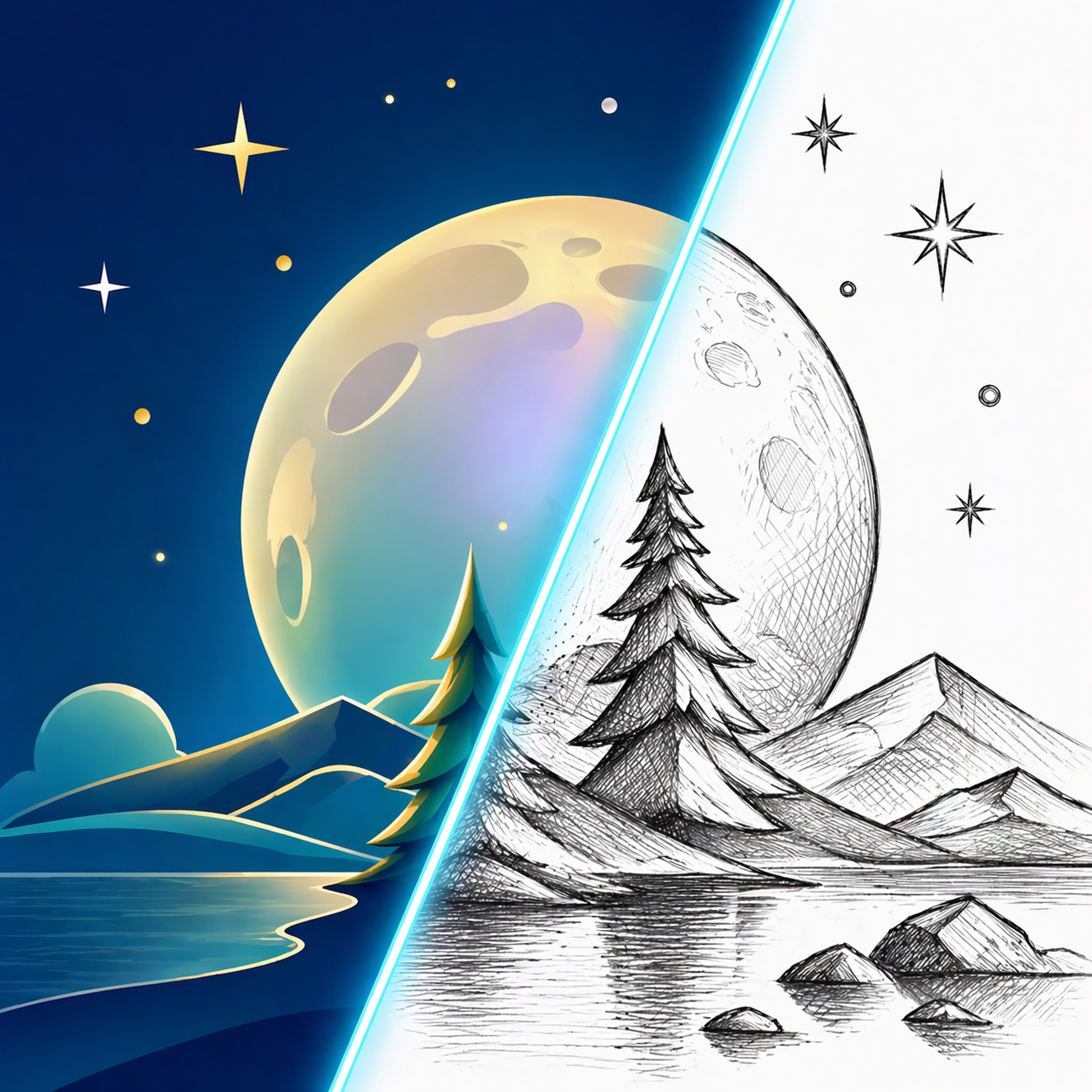
No. A pencil sketch uses line, shading, and paper texture. A cloud sketch uses realistic cloud material, soft edges, blue sky, and natural light diffusion.
Try the Cloud Sketch Tool
Upload an image, tune cloudness, and create a soft cloud-shaped sky composition.
Create a cloud sketch